- Option 1: Built-in iPhone methods
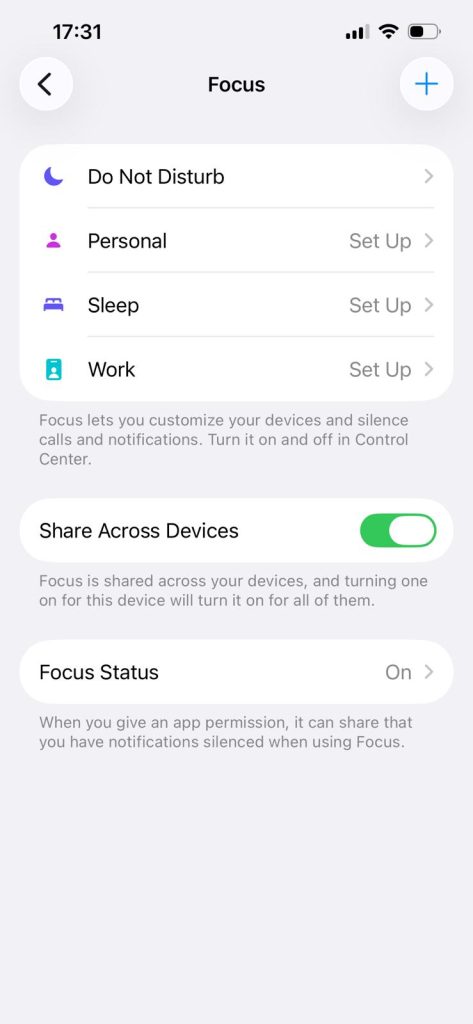
- Option 2: Focus modes for app control
- Option 3: Install an app designed to lock the screen
Your iPhone can be incredibly useful, but it can also become a source of distraction fast. When apps are always visible, it is easy to open them out of habit without even thinking. That is why many people want to learn how to hide apps on iPhone, whether for privacy, focus, or a cleaner Home Screen.
The good news is that you do not need to be tech-savvy to do it. There are several simple ways to hide apps, reduce visual clutter, and make your phone feel more organized. In this guide, you will learn how to hide apps on iPhone using built-in settings, Focus modes, and even a dedicated app designed to support better screen habits.
How to Hide Apps on iPhone in Settings?
Method No. 1: Move Apps to the App Library
If you want a quick, simple way to hide apps on your iPhone, start with the App Library. You don’t need any special tools or settings, and the process takes only a few seconds.
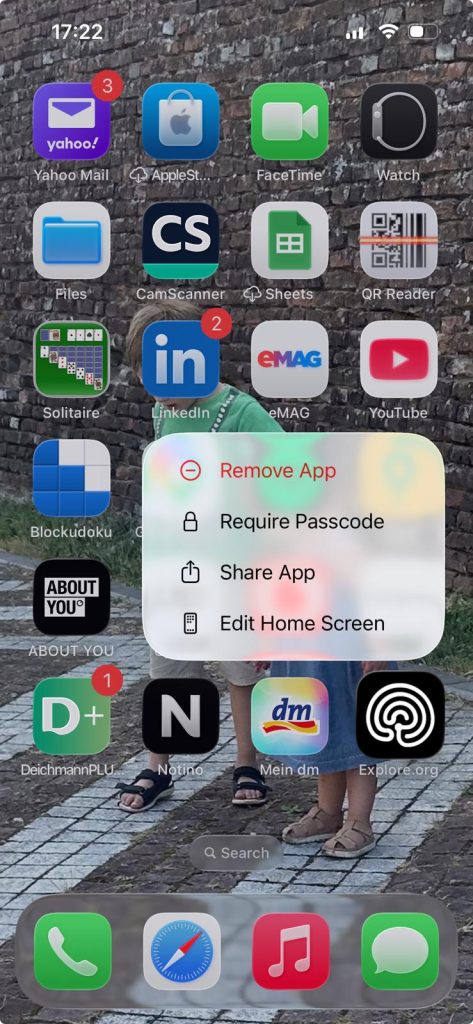
- Press and hold the app you want to hide until a menu appears.
- Tap “Remove App”.
- Choose “Remove from Home Screen.”
The app will not be deleted, so you don’t have to worry about losing data. It simply moves to the App Library, where all your apps are neatly organized. You can still find it anytime by swiping left through your Home Screen pages.
This method is perfect when you want a cleaner, more minimal screen without giving up access to your favorite apps.
Method No. 2: Hide Apps Inside Folders
Another easy method is to hide apps inside folders, which works surprisingly well. If you don’t want certain apps to stand out, this trick helps you keep them out of sight.
- Press and hold an app.
- Drag it on top of another app to create a folder.
- Once the folder appears, drag the app you want to hide inside it.
To make it even less visible, move the app to the second or third page within that folder. Most people won’t swipe through multiple pages, so the app stays hidden in plain sight. You can also rename the folder something generic, so it doesn’t attract attention.
This method keeps your apps accessible while making your screen look clean and organized.
Method No. 3: Remove Entire Home Screen Pages
If you’re ready for a bigger change, you can hide entire Home Screen pages at once. This is one of the most effective ways to reduce distractions and simplify your phone.
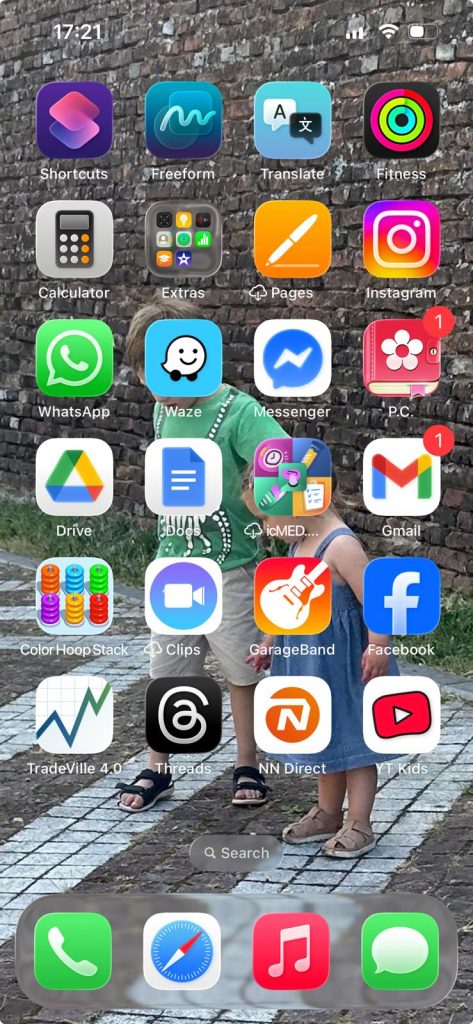
- Press and hold on an empty space on your screen until the icons start to move.
- Tap the dots at the bottom that represent your pages.
You will see all your Home Screen pages in one place.
- Simply uncheck the pages you want to hide.
- Tap “Done.”
The apps are not deleted, so you can still access them in the App Library whenever you need them.
This method works great if you want a more focused and minimal phone experience.
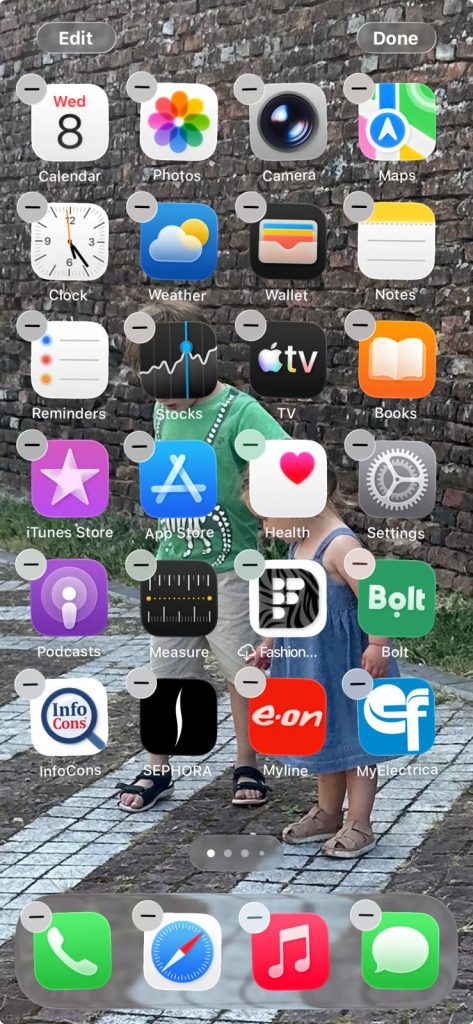
Once you’ve hidden your apps, the way you use your phone can change completely. Instead of scrolling through multiple pages, you can simply swipe down on your screen to open search. Type the name of the app, and it will appear instantly.
How to Hide Apps on iPhone without Deleting Them?
If you want more control over your phone, Screen Time can become your secret weapon. It is already built into your iPhone and is very easy to use. Many people overlook it, but it plays a big role when learning how to hide apps on iPhone.
- Go to Settings.
- Tap on Screen Time.
- If it is your first time, turn it on and set a passcode.
Make sure you choose a passcode that is not easy to guess. This small step makes a big difference if you want real control over your habits.
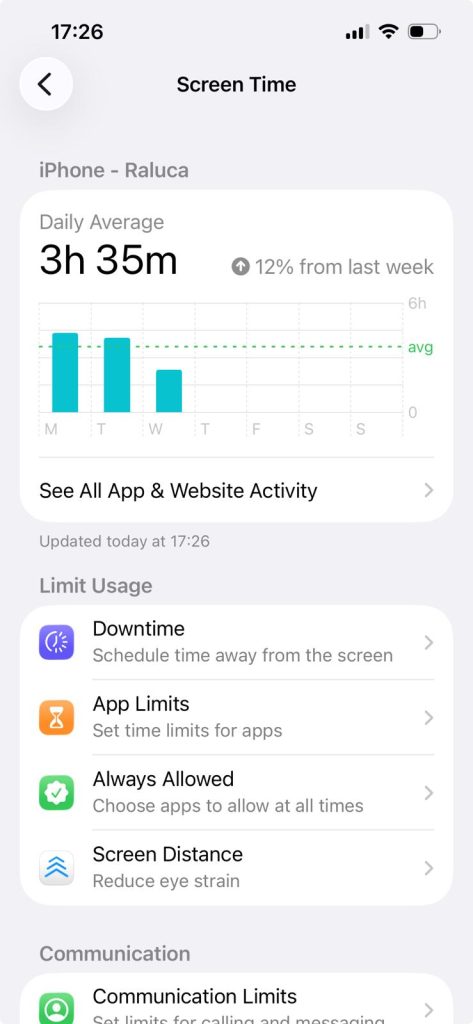
Use App Limits to Lock Apps
One of the most useful features inside Screen Time is App Limits. This allows you to set daily time limits for specific apps or categories. For example, you can select social media apps or games that tend to distract you. Once you choose them, you can set a limit for how long you want to use them each day.
If your goal is to lock an app, you can set the limit to just one minute. After that time is used, the app becomes unavailable. When you try to open it again, you will see a lock screen. You can still choose to bypass it, but it requires extra steps. That small pause is often enough to make you rethink opening the app again. It adds just enough friction to help you stay focused.
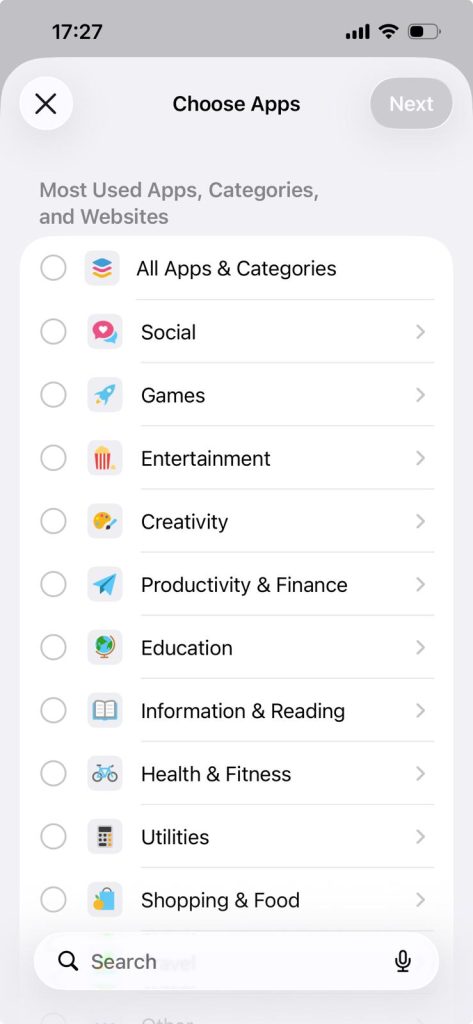
Hide Apps with Content Restrictions
Another powerful option is using Content and Privacy Restrictions. This feature allows you to hide certain built-in apps from your Home Screen completely.
- Go to Screen Time.
- Tap “Content & Privacy Restrictions,” and turn it on. You will need to enter your passcode to continue.
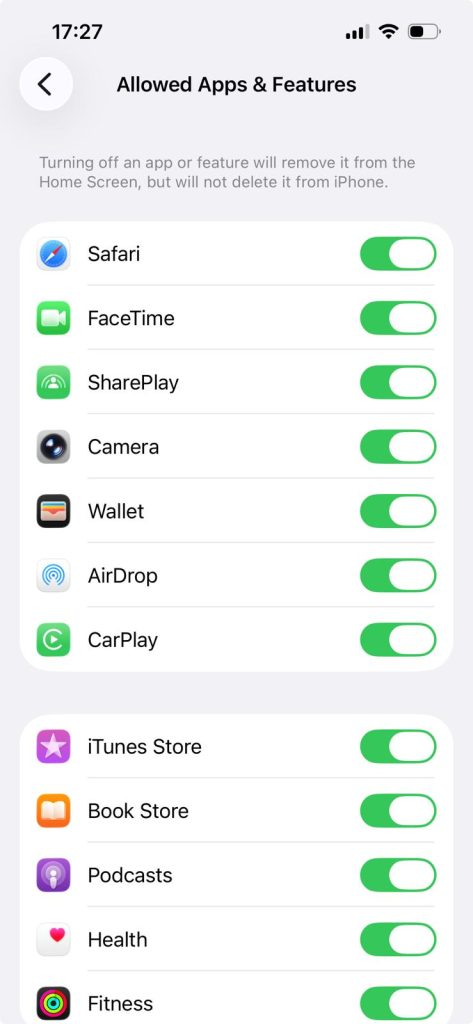
- Tap on “Allowed Apps,” where you will see a list of system apps. From there, you can turn off apps like Safari or the Camera.
Once turned off, these apps will disappear from your Home Screen. While this method does not apply to every third-party app, it still gives you a strong level of control over what you see daily.
Focus Modes for App Control
If you want a smarter way to manage distractions, Focus Mode is a great place to start. It is built into your iPhone and gives you more control over what you see. When learning how to hide apps on iPhone, this feature feels like a hidden gem.
Focus Mode lets you customize your phone based on what you are doing. You can create different setups for work, personal time, or relaxation. Each mode can show or hide specific apps and notifications. This means your phone adapts to your day, not the other way around.
Setting Up Your Own Focus Profile
- Go to Settings, then tap on Focus. You will see options like Do Not Disturb, Work, or Personal. You can also create a custom Focus that fits your lifestyle.
- Choose which people and apps are allowed to notify you. Everything else stays silent and out of sight.
- Customize your Home Screen for each Focus Mode. You can select specific pages to show, while hiding others completely.
This is one of the most effective ways to hide apps without actually removing them.
The real power of Focus Mode comes from context. You can decide what apps you want to see depending on what you are doing. For example, during work hours, you might only want productivity apps visible.
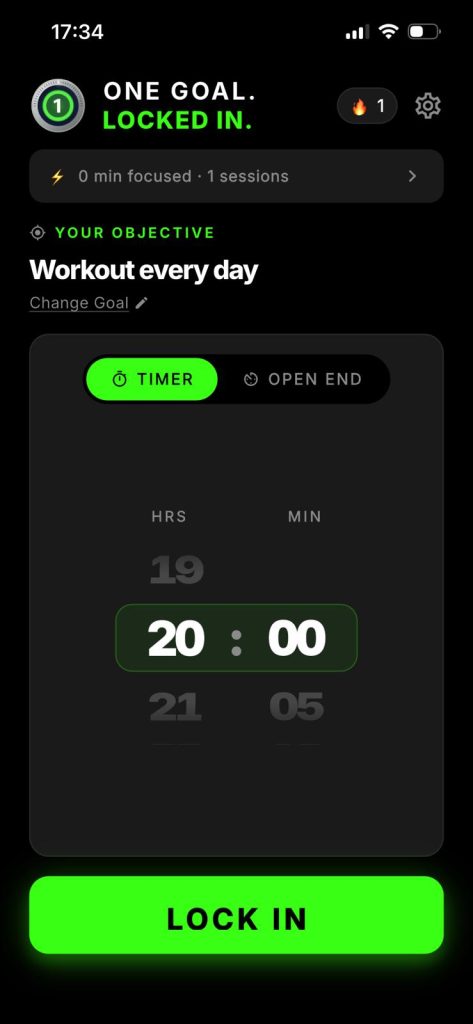
One Goal: Locked In (focus session app with iOS 13+ support)
If you want an app that helps you stay focused on one task at a time, One Goal: Locked In is a solid option. Instead of juggling multiple to-dos, this app is built around a simple idea: choose one goal, start a session, and stay with it. It supports iPhone devices running iOS 13.0 or later.
Steps to use One Goal: Locked In on iPhone:
- Install “One Goal: Locked In” from the Apple App Store
- Open One Goal: Locked In
- Complete the onboarding steps: enter your name, set your goal, choose when you want to focus
- Start a focus session
- Select either countdown mode or open-ended mode
- Set a daily reminder so you do not miss a session
Common Mistakes to Avoid
- Thinking hidden means gone: when learning how to hide apps on iPhone, you are only changing visibility, not deleting anything.
- Forgetting about search access: if you rely only on hiding apps, this can break your focus quickly. That is why many people combine hiding with Screen Time limits.
- Hiding too many apps at once: a better approach is to start small and be intentional. Hide only the apps that distract you the most. Keep essential apps visible and easy to access.
- Ignoring your daily habits: if your habits stay the same, you will find ways around any system. Instead, focus on how you use your phone daily.
- Not updating your setup over time: take time to review what is working and what is not. You might need to hide new apps or bring some back.
Why People Hide Apps? Privacy & Focus
One of the main reasons you might want to learn how to hide apps on iPhone is privacy. Hiding apps gives you a simple layer of protection without deleting anything. You still keep full access, but others cannot see everything at a glance. This is especially useful for apps like banking, health, or personal notes.
Another big reason people explore how to hide apps on iPhone is focus. Social media, games, and notifications are always competing for your time. When these apps are visible, you are more likely to open them without thinking. By hiding them, you remove that constant visual trigger.
You might also want to hide apps simply because you prefer a clean and simple look. A crowded Home Screen can feel overwhelming and messy. By hiding apps, you create a more organized and visually pleasing space.
Conclusion
At the end of the day, learning how to hide apps on iPhone is about control. Your phone should work for you, not the other way around. When everything is visible all the time, it is easy to feel distracted.
By choosing what appears on your screen, you set clear boundaries. You decide when and how you use certain apps. This small shift can have a big impact on your daily habits.
Over time, you may notice you feel less overwhelmed and more intentional. And that is exactly the goal.
FAQs
1. Is there a way to hide apps on iPhone?
Yes, there is. You can hide apps on iPhone by removing them from the Home Screen, placing them in folders, hiding pages, or using Focus and Screen Time settings for more control.
2. How do I put an app as hidden?
To hide an app on iPhone, press and hold it, tap “Remove App,” then choose “Remove from Home Screen.” The app stays on your phone but moves to the App Library.
3. Can I hide an app on my phone without deleting it?
Yes. You can hide an app on your iPhone without deleting it by removing it from the Home Screen, placing it in a folder, or hiding an entire page. The app stays installed and remains available in the App Library.
4. Can others see my hidden iPhone apps?
Hidden apps are less visible, but not fully invisible. Others may still find them through App Library, Search, or Screen Time settings unless you also use extra privacy controls and passcodes.