- Desktop browsers offer the strongest Shorts blocking options.
- Extensions can hide Shorts from your homepage and sidebar.
- Content filters remove Shorts without blocking regular videos.
- Android users have stronger filtering and customization options.
- iPhone users can use Safari instead of the app.
YouTube Shorts feels hard to ignore because it is built for quick rewards. You can hide some Shorts shelves, but they usually come back. That is why many users look for ways to learn how to block YouTube Shorts but keep videos, instead of quitting YouTube completely.
When you create a cleaner setup, YouTube becomes a tool again. You watch what you planned, then leave. And I’ll teach you how to actually do it.
YouTube Without Shorts: A Practical 2026 Guide
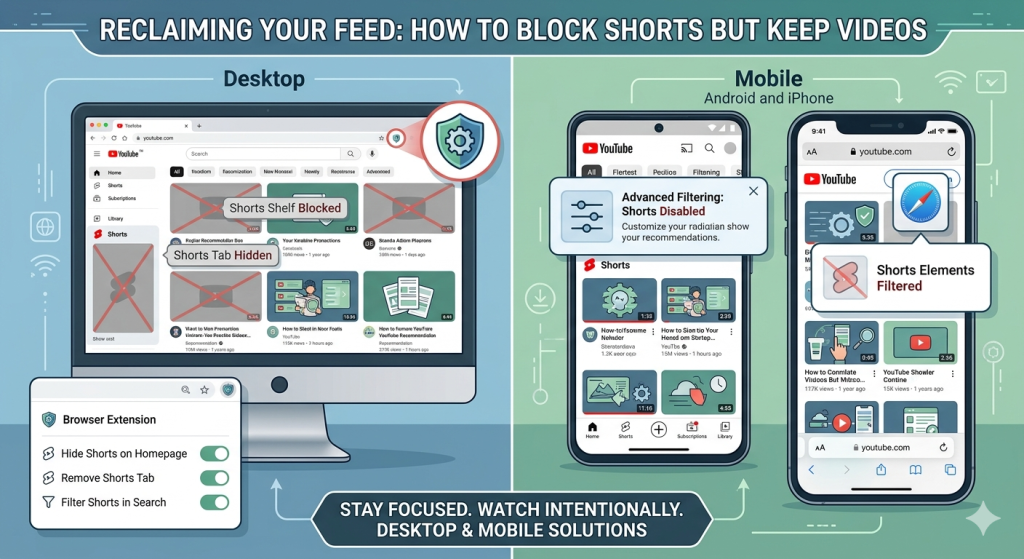
The easiest place to start is your desktop browser. If you mainly use YouTube on Chrome, Firefox, or Edge, you have more control than you think. Browser extensions can clean up your homepage, remove Shorts shelves, hide the Shorts tab, and make YouTube feel less like a digital carnival.
Useful Extensions to hide Shorts
Chrome, Firefox, and Edge all support browser extensions, but the experience can vary.
- Chrome has plenty of options, but extensions can sometimes change when YouTube updates its layout.
- Firefox is often loved by people who like more control and privacy.
- Edge works similarly to Chrome, so many Chrome extensions also work there.
Extensions like Unhook, Hide YouTube Shorts, and other YouTube cleanup tools can help remove those tempting areas.
- Some let you hide Shorts from the homepage, sidebar, subscriptions page, and search results.
- Others also remove recommendations, comments, and trending tabs, if you want a calmer setup.
This is one of the best ways to learn how to block YouTube Shorts but keep videos. With their help, you are just removing the parts that behave like a snack cupboard with flashing lights.
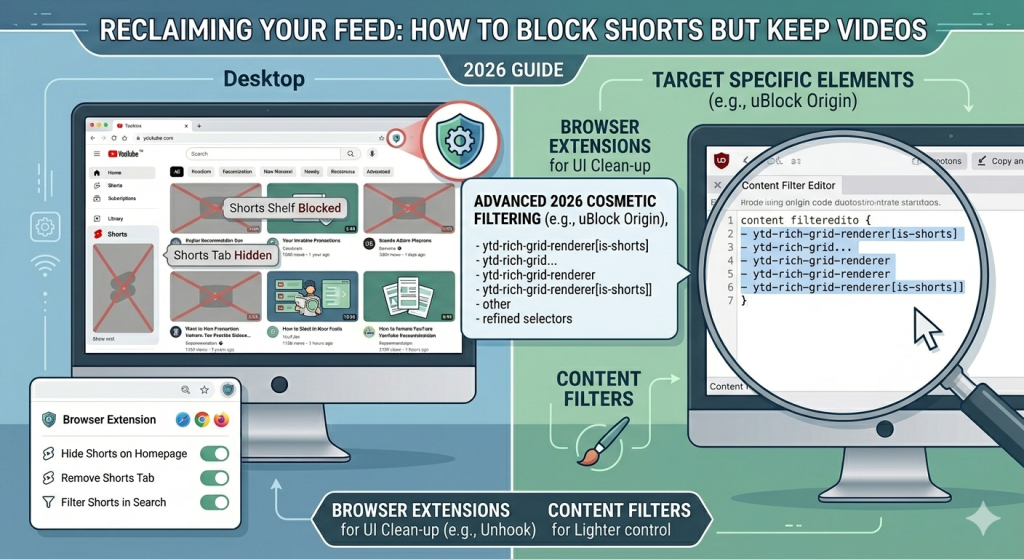
If you want a lighter method, content filters can also help. Tools like uBlock Origin allow custom rules that hide specific YouTube elements. This can remove the Shorts shelf and Shorts sidebar button without blocking normal videos. It sounds slightly technical, but it is mostly copy, paste, save, and enjoy your cleaner feed.
Content filters are useful because they target the interface, not the whole website. You can still search for tutorials, open playlists, watch lectures, or play music. You simply make Shorts harder to stumble into by accident.
Make Mobile YouTube Less Slippery
Mobile is trickier, especially because apps give you less control than browsers, mainly because YouTube wants the Shorts button close to your thumb.
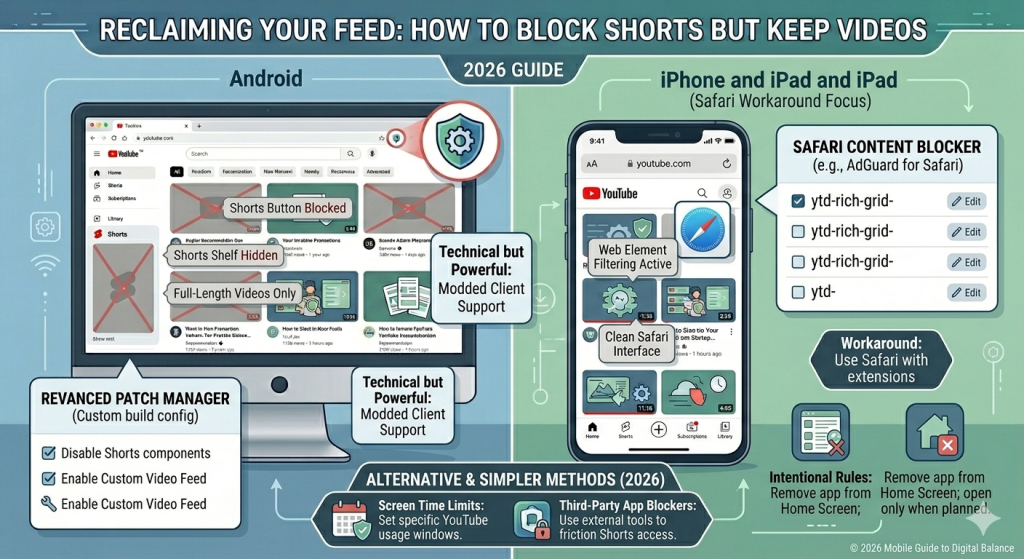
On Android, users usually have stronger options. Some people use alternative YouTube frontends that focus on regular videos instead of algorithmic feeds. Others use advanced tools like ReVanced, which can hide Shorts components from the YouTube app interface. These options are more technical, but they give Android users more freedom to shape their experience.
iPhone users, on the other hand, have fewer deep customization options because iOS is more locked down. One useful workaround is to stop using the YouTube app and open YouTube in Safari instead. Then you can use Safari content blockers or browser extensions that help hide distracting elements.
If you prefer something simpler, you can also reduce exposure with:
- app blockers,
- screen time tools,
- intentional opening rules.
For example, you might only open YouTube from your browser, not the app. Or you might remove the YouTube app from your home screen.
Use YouTube’s “Show Fewer Shorts” Option
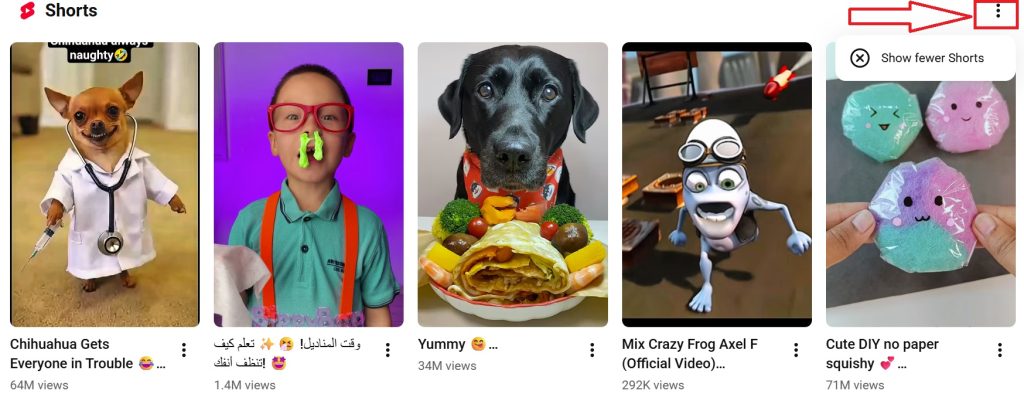
You can also try YouTube’s own “Show fewer Shorts” option. It is not a magic delete button, but it can help reduce how often Shorts appear in your feed.
To use it, open the YouTube app and go to your Home feed. Scroll until you see a grid of Shorts. Tap the three-dot menu at the top of that Shorts section, then choose “Show fewer Shorts.”
This tells YouTube that you want fewer Shorts recommendations in places like your Home feed or Watch Next page. It does not fully block Shorts.
Still, it is a useful first step if you want to learn how to block YouTube Shorts but keep videos without using extensions yet. It works best when combined with other habits, like removing YouTube from your home screen, saving videos to playlists, and opening YouTube with one clear goal.
How to Use YouTube Without Doomscrolling Shorts
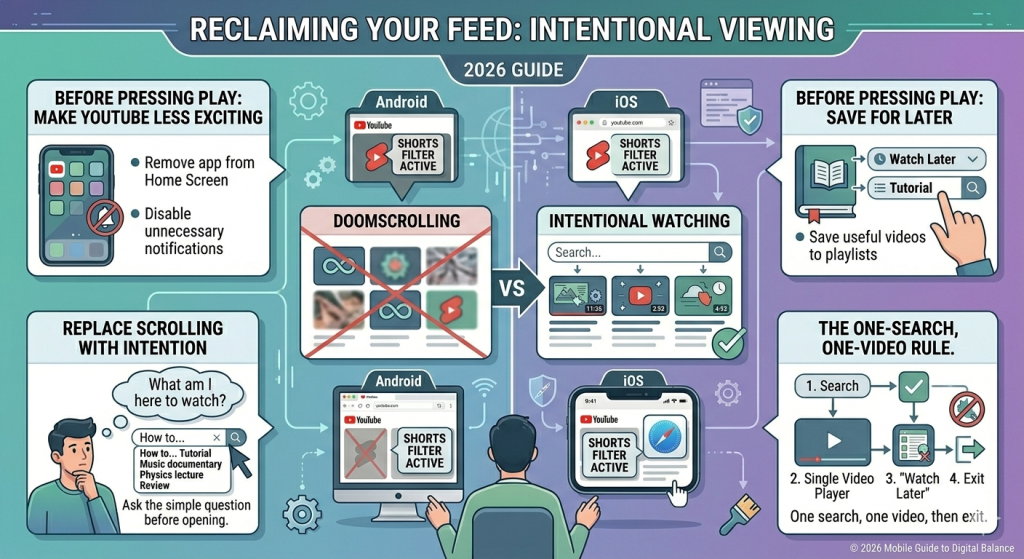
Using YouTube without doomscrolling starts before you press play:
- Start by making YouTube less exciting on purpose. Remove the app from your home screen. Turn off unnecessary notifications. Save useful videos to playlists before you need them.
- Use browser extensions, content filters, or mobile blockers to reduce Shorts exposure. This is where learning how to block YouTube Shorts but keep videos becomes useful. You still get tutorials, music, documentaries, reviews, and lectures.
- Replace scrolling with intentional watching. Before opening it, ask one simple question: “What am I here to watch?” If you know the answer, search for that video directly. If you do not know the answer, you probably do not need YouTube yet.
- Create a small rule: one search, one video, then exit. If you need more, add it to Watch Later instead of wandering through recommendations.
Conclusion
Learning how to block YouTube Shorts but keep videos is about using it on your terms. YouTube can still be a brilliant place for tutorials, music, reviews, documentaries, lectures, and deep dives. The problem starts when Shorts turns one useful visit into a scrolling marathon you never planned.
The real goal is simple: make Shorts harder to reach and useful videos easier to watch. Add a little friction, create a calmer setup, and decide what you came to watch before opening the app.
When YouTube becomes intentional again, you get the best part back: helpful videos without scrolling throughout your afternoon.
People Also Ask
How do I permanently turn off Shorts on YouTube on my computer?
YouTube does not offer a permanent Shorts-off switch. On desktop, the closest fix is using browser extensions like Unhook or Hide YouTube Shorts, or content filters through uBlock Origin to remove Shorts sections while keeping regular videos.
How do I force stop YouTube Shorts?
You can’t fully force stop Shorts inside YouTube, but you can block access points. On desktop, use a Shorts-hiding extension or uBlock filters. On mobile, remove the app, use YouTube in a browser, or add app blockers for extra friction.
Can we delete Shorts from YouTube?
No, you can’t delete Shorts from YouTube completely. You can only hide or block them from your own view using desktop extensions, content filters, alternative mobile setups, or app blockers that make Shorts harder to open.
Does YouTube offer a Shorts block option?
No, YouTube does not offer a true Shorts block option. You can hide some Shorts temporarily, but they usually return. For stronger control, use desktop extensions, browser content filters, or mobile workarounds.
How do I permanently disable YouTube Shorts on my iPhone?
You cannot permanently disable YouTube Shorts inside the iPhone app. The best workaround is deleting the app and using YouTube in Safari with content blockers, or adding app limits and blockers to make Shorts harder to access.
Can you get a YouTube app without Shorts?
There is no official YouTube app without Shorts. Some Android users use alternative frontends or advanced custom setups, but these are not official. On iPhone, the safer option is using YouTube in Safari with content blockers.