- Quick DND setup on iPhone for instant peace and focus
- Allowing important calls through Do Not Disturb on your iPhone
- Why notifications still appear when Do Not Disturb is on
Setting up do not disturb on iPhone is easier than most people think. You only need your phone and a few taps. That is great news when you want peace quickly.
The First Approach:
- Start by opening the Control Centre on your iPhone. Look for the Focus button. Tap it, then choose Do Not Disturb from the list.
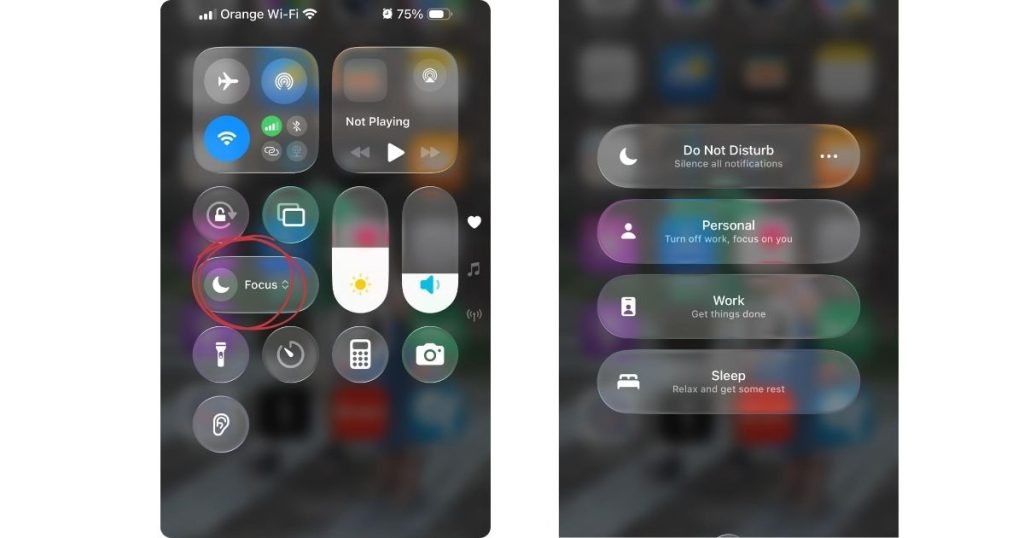
The Second Approach:
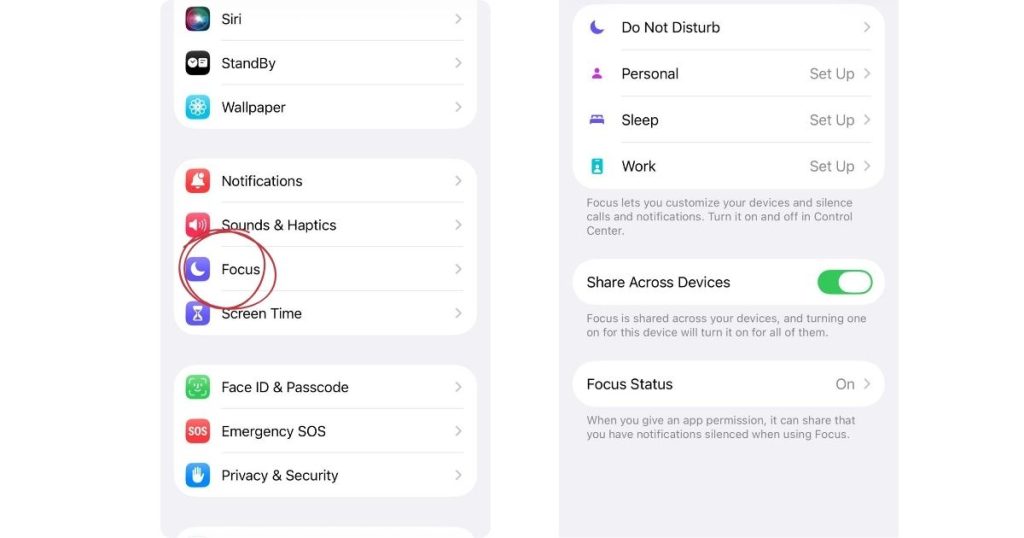
- Head into Settings.
- Scroll down and tap Focus.
- Select Do Not Disturb.
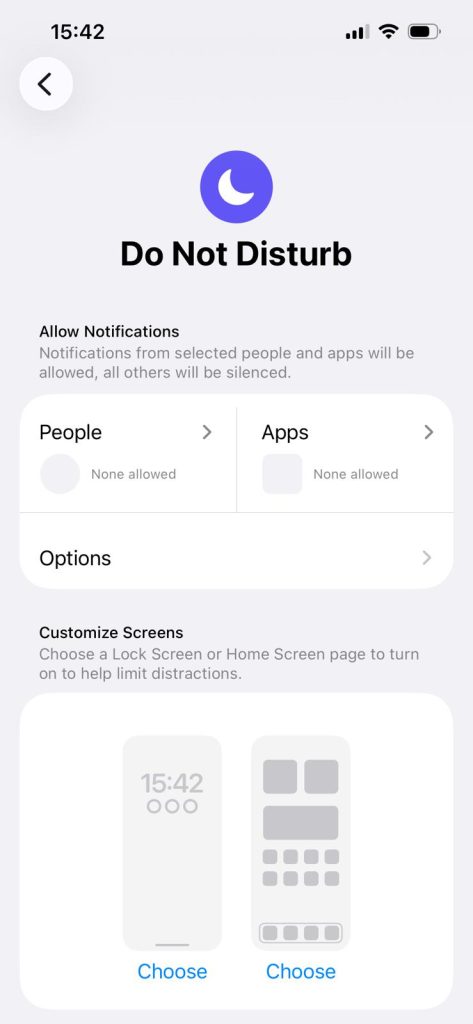
Here, you can decide:
- who is allowed to contact you;
- which apps may still send notifications;
- a schedule for do not disturb on iPhone.
You are choosing how and when your phone should behave. That makes the feature much more useful in everyday life.
Tip: Test it during a short break first. Turn it on for 30 minutes and notice how it works for you.
Letting the Right People Through
One of the best things about do not disturb on iPhone is that it does not have to block everyone. You can enjoy some peace without worrying about missing an important call.
How to set it up:
- Open Settings.
- Tap Focus.
- Choose Do Not Disturb.
From there, look for the people section. You can add contacts who are allowed to call while the mode is on. Once you do that, their calls can still reach you, even during quiet time.
There is also a handy option for repeated calls. If the same person calls again within a few minutes, the second call can come through. That is useful for real emergencies.
Tip: Ask someone from your allowed list to call you. Then ask someone outside the list to try as well. This quick check helps you feel confident that everything works the way you want.
Set It and Forget It
One of the smartest ways to use do not disturb on iPhone is by setting a schedule. Instead of turning it on manually, you let your phone handle it for you.
How to set it up:
- Open Settings.
- Tap Focus.
- Choose Do Not Disturb.
Look for the option to add a schedule. From there, you can choose times, days, and even triggers.
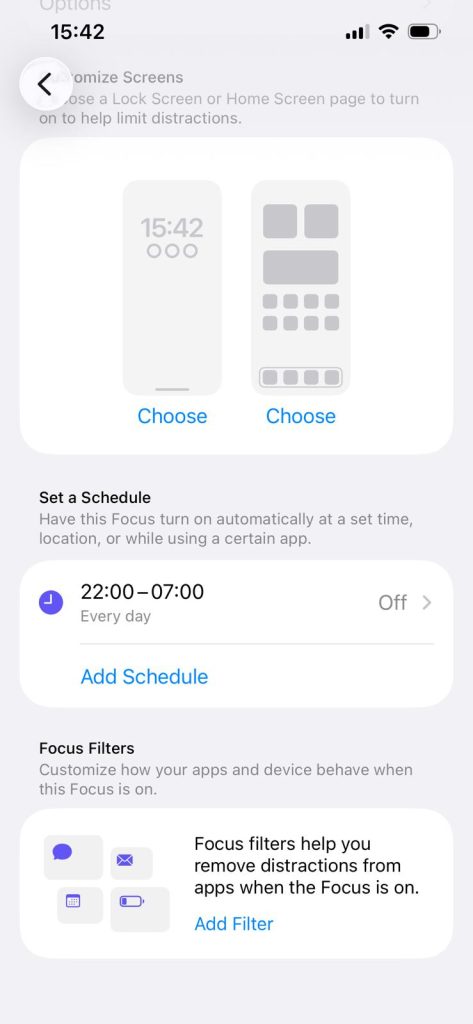
For example, you might schedule Do Not Disturb from 10 PM to 7 AM every day. That works well if you want better sleep.
Tip: Start with one simple schedule. Try a bedtime block first and see how it feels. Once that works, add another quiet period during the day.
Why Do Notifications Still Come Through?
If do not disturb on iPhone feels confusing, you are not imagining it. These days, Do Not Disturb lives inside Apple’s Focus system. That means it can be more flexible, but also less obvious at first.
In the past, many people expected Do Not Disturb to silence absolutely everything. Now, your iPhone may still allow some alerts through, depending on your settings:
- You may have allowed certain people or apps inside your Focus settings. If that happens, their calls or notifications can still appear while do not disturb on iPhone is on.
- The Time Sensitive notifications setting. Apple lets these alerts break through a Focus if that option is enabled. So if your phone still lights up, this setting may be the reason.
- There is also a feature called Repeated Calls. If someone calls twice within three minutes, that second call can come through. This is helpful for urgent situations, but surprising if you were expecting total silence.
Because of this, do not disturb on iPhone is not always a strict block. It is more like a smart filter. Your iPhone follows the rules you set, even if you forgot you set them.
Where to check:
A good place to check is Settings > Focus > Do Not Disturb. Review your allowed people, allowed apps, Time Sensitive notifications, and Repeated Calls. Even one enabled option can change how quiet your phone feels.
If you use several Apple devices, one more detail matters. Apple also offers Share Across Devices, which can apply the same Focus settings across your connected devices. That can make notifications behave differently than you expect.
How to make it feel like classic DND
If you want do not disturb on iPhone to feel closer to the old version, keep things simple:
- Remove allowed contacts and apps first.
- Turn off Time Sensitive notifications if you do not want exceptions.
- Review Repeated Calls and switch it off if you want fewer surprises. This one setting often explains why calls still break through.
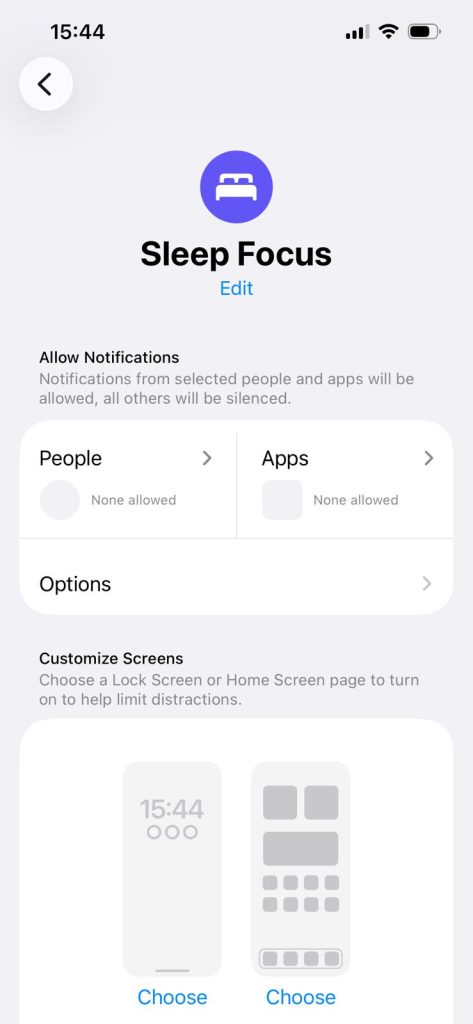
Tip: For bedtime, Sleep Focus may be a better choice than standard Do Not Disturb. Apple includes it as a separate Focus, and many users find it more suitable for overnight quiet.
Conclusion
Using do not disturb on iPhone is about making your phone work around your life instead of interrupting it all day. Once you understand the settings, it becomes much easier to create quiet moments without missing what matters most.
FAQs
1. What happens on iPhone when Do Not Disturb is on?
When Do Not Disturb is on, your iPhone silences most calls, messages, and app alerts. Some notifications may still come through if you allowed certain people, apps, Time Sensitive alerts, or repeated calls in Focus settings.
2. What happens when your phone is on do not disturb and someone calls you?
When your phone is on Do Not Disturb, calls are usually silenced. The caller may still hear it ring, but you will not get the normal alert. If you allowed that contact, enabled repeated calls, or set exceptions, the call can still come through.
3. How do I get my iPhone out of do not disturb mode?
To turn off Do Not Disturb on iPhone, open Control Centre, tap Focus, then tap Do Not Disturb. You can also go to Settings, tap Focus, choose Do Not Disturb, and switch it off there.
4. How to permanently disable Do Not Disturb on iPhone?
To permanently disable Do Not Disturb on iPhone, turn it off in Control Centre, then go to Settings > Focus > Do Not Disturb and remove any schedules or linked Lock Screens. Otherwise, it may switch back on automatically.