- Start blocking websites with Screen Time
- Use Content & Privacy Restrictions to manage web access
- Go to Web Content to choose how restricted Safari should be
If you want to learn how to block a website on iPhone, the easiest place to start is Screen Time. Apple already includes this feature, so you do not need extra apps. That makes the setup simple, quick, and less annoying.
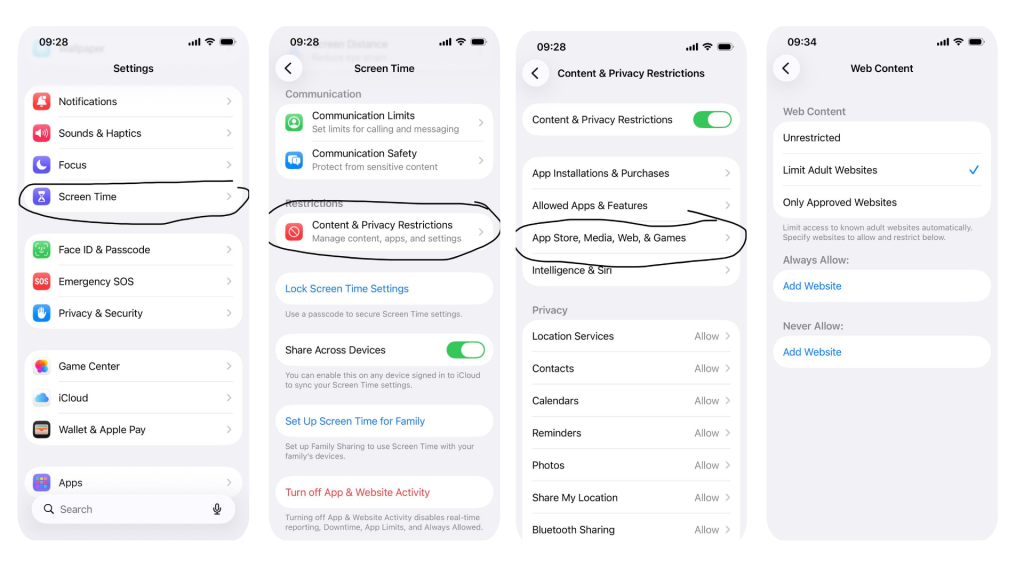
- Open Settings on your iPhone. Scroll down and tap Screen Time. If you have never used it before, you may need to turn it on first. Follow the prompts until the feature is active. This only takes a minute.
- Tap Content & Privacy Restrictions. Turn the option on at the top of the screen. This is the part that gives you control over website access. Once it is active, more settings will appear below.
- Tap App Store, Media, Web, & Games or, on some iPhones, Content Restrictions. Then choose Web Content. This is where the website blocking happens.
- Pick between these 3 options: Unrestricted Access, Limit Adult Websites, and Allowed Websites Only. For most people, Limit Adult Websites is the best starting point. It lets you block specific websites while keeping normal browsing open.
- Under Limit Adult Websites, you can add websites manually. Look for the Never Allow section. Tap Add Website and type in the web address you want to block. Be careful when entering the site. A small typo can make the block useless.
After adding a blocked site, test it right away. Open Safari and try visiting the website. If the setup worked, you should see a restriction message. That is your sign that everything is working.
More Features and Settings
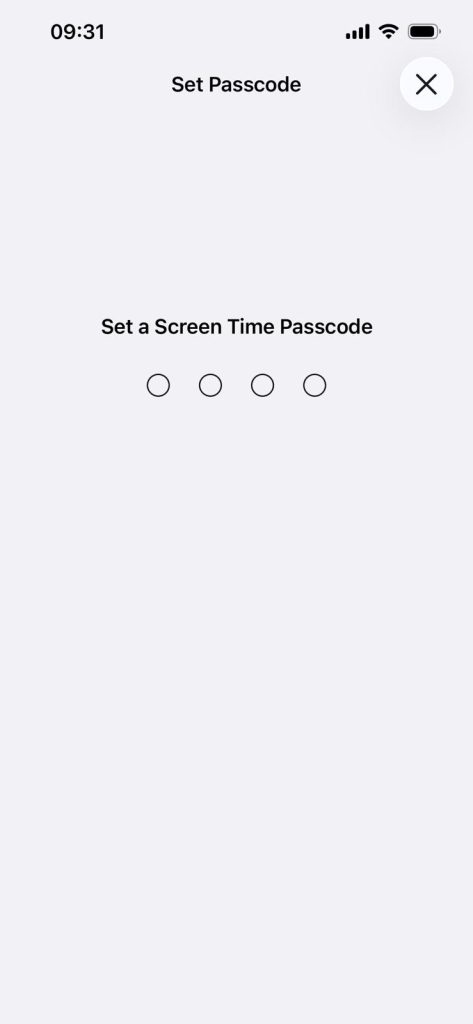
You should also set a Screen Time passcode. Without a passcode, anyone can remove the restriction in seconds. That includes you on a tired evening when self-control suddenly disappears.
To do this, return to the main Screen Time menu and tap Lock Screen Time Settings. Choose a passcode you will remember but not guess too easily. This gives your website block a stronger chance of lasting.
The Never Allow list is especially useful. This lets you manually enter websites you do not want accessible. It is a practical solution when you already know which sites are causing the problem. You simply add the address, and your iPhone does the rest. There is also the Allowed Websites Only option. This setting is much stricter and works well if you want a very controlled browsing environment. It can be helpful for younger children or for creating a highly focused phone setup.
Why Website Blocking on iPhone Sometimes Fails
If you are trying to figure out how to block a website on iPhone and the settings do not seem to work, you are not alone. In most cases, the problem comes from one small setting, a sync issue, or a browser detail that is easy to miss.
Let’s look at the most common reasons it fails and how you can fix them without losing your patience.
1. Wrong Settings to Check
The first thing to know is that website blocking only works if the correct restrictions are turned on. Many people add a blocked website, but forget one earlier step. That small miss can make the whole setup fail.
Another common issue is entering the wrong website version. Some sites work with “www” and without it. Others use different country domains or redirect through another address. If you only block one version, the site may still load through another path. That is why it helps to block every likely version of the site.
Typos are another classic problem. One missing letter, one wrong dot, or one extra slash can make the rule useless. It is not exciting advice, but double-checking the website address can save you a lot of frustration.
2. Screen Time Sync Issues
Now let’s talk about Screen Time itself. Even when your settings look correct, they do not always update perfectly across devices. This can be especially annoying if you use more than one Apple device with the same Apple account.
For example, you may block a website on your iPhone, but the settings may not behave as expected if Screen Time is also connected to an iPad or another family device. In some cases, syncing can lag behind or apply changes unevenly. That can make it seem like the website block is broken, when it is really just delayed or confused.
If you use Family Sharing, things can get even trickier. Parents often set limits for a child’s device, but the restrictions may not appear right away. Sometimes the settings need a moment to update. Other times, signing out and back in or restarting the device helps the changes apply properly.
You should also check whether Screen Time passcode protection is active. Without it, someone can change the settings back without much effort. That can make it seem like website blocking failed, when the restrictions were actually removed.
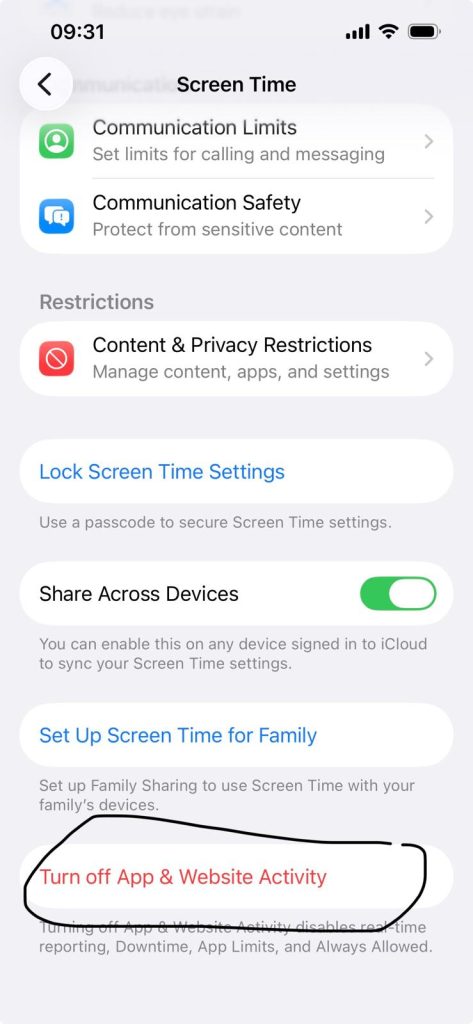
If Screen Time feels glitchy, try the basic reset routine:
- Turn Screen Time off,
- Restart the iPhone,
- Reapply the website restrictions.
3. Browser-Related Workarounds
Here is one detail many people overlook: blocking a website on iPhone does not always behave the same way in every browser. Most of the time, these restrictions work best in Safari, because it is Apple’s own browser and connects directly to iPhone settings.
If someone is using another browser, such as Chrome or Firefox, the results may be less consistent. Some restrictions still carry over, but not always in the clean way you expect. That can lead to the very annoying situation where a blocked website stays blocked in Safari but opens elsewhere.
Private browsing can also make testing feel confusing. You may think the website block is not working, when really the browser is loading a saved version or handling the address differently.
Another issue comes from search engines and cached pages. Sometimes you block a website, but a preview or search result still appears. That does not always mean full access remains. It may only mean the browser still shows stored information. Try tapping into the actual page to test whether the restriction is working.
If your goal is strong website blocking, it helps to keep Safari as the main browser and test everything there first. That gives you the clearest picture of whether your settings are doing their job.
4. Simple Troubleshooting Steps
If website blocking still fails after checking the basics, do not panic. A few simple troubleshooting steps can often solve the problem.
- First, restart your iPhone. Yes, it is the oldest advice in the tech world, but it still works surprisingly often. A restart can help refresh Screen Time settings and clear minor bugs.
- Second, remove the blocked website and add it again. Make sure you type the address carefully. If needed, add multiple versions, including with and without “www”.
- Third, confirm that Content & Privacy Restrictions are still turned on. Sometimes settings get changed during updates or after other adjustments inside Screen Time.
- Fourth, test the website in Safari instead of another browser. This helps you find out whether the issue is the restriction itself or the browser being less cooperative.
- Finally, make sure your iPhone software is up to date. If you are learning how to block a website on iPhone, updated software gives you the best chance of smooth results.
Tips for Stronger Control
If you want better results when learning how to block a website on iPhone, a few extra steps can make your setup much stronger. The basic settings help, but stronger control comes from being a little more thorough.
- Always use a Screen Time passcode. This is one of the smartest moves you can make. Without a passcode, blocked websites are easy to remove. With one in place, your settings are much harder to change on impulse.
- Block more than one version of the same website. Some websites open with “www” and others without it. A site may also redirect to a slightly different address. Adding every likely version gives you better coverage and fewer gaps.
- Use Safari as your main browser when testing restrictions. iPhone website limits usually work most smoothly there. If you use different browsers, results can feel less reliable.
- Combine website blocking with other Screen Time tools. This works well if certain websites pull you in through related apps.
- Review your settings now and then. A quick check helps you spot mistakes, outdated blocks, or changes made by accident. Stronger control usually comes from consistency, not just setup.
Conclusion
If you are learning how to block a website on iPhone, the most important thing is to set it up carefully and test it right away. Small details, like using the correct website address, setting a Screen Time passcode, and checking Safari first, can make a big difference. And if something does not work on the first try, a few quick troubleshooting steps usually solve the problem.
Whether you want fewer distractions, stronger parental controls, or better daily focus, website blocking can be a helpful tool. Once your settings are in place, your iPhone can support your habits instead of working against them.
FAQs
1. Can I block a specific website on my iPhone?
Yes, you can block a specific website on your iPhone using Screen Time. Go to Settings, open Screen Time, turn on Content & Privacy Restrictions, then add the site under Web Content in the Never Allow list.
2. Can I permanently block a website in Safari?
Yes, you can block a website in Safari through Screen Time settings. It will stay blocked until you remove it, change restrictions, or turn Screen Time off. Adding a passcode helps make the block more secure and harder to undo.