- Daily and weekly views reveal real patterns.
- Pickups reveal impulsive phone-checking habits.
- First-used apps expose your strongest habit loops.
If you want to learn how to check screen time on iPhone, start with the obvious place: Settings.
- Tap Screen Time, and your iPhone will show a quick summary of your daily use.
- Tap See All App & Website Activity. You can see which apps ate the most time, which websites pulled you in, and when your usage peaked.
- Check Pickups and Notifications. Pickups show how often you grab your phone. Notifications reveal which apps keep poking your brain.
Treat Screen Time Like an Audit
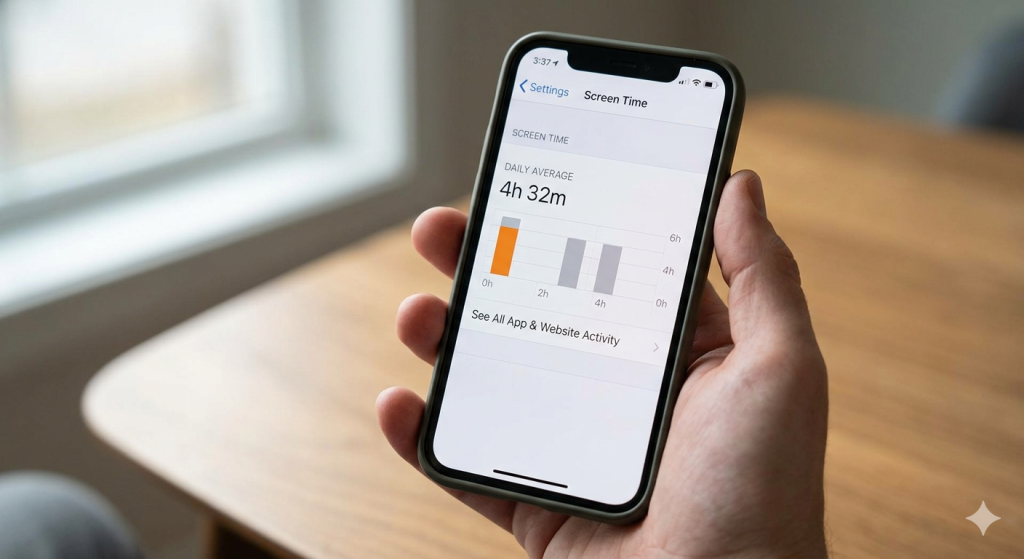
Open Screen Time, tap See All App & Website Activity, and look at your most-used apps. One app will usually stand out. It may be TikTok, Instagram, YouTube, Reddit, or Safari.
That app is your biggest scrolling app. Now ask yourself one simple question: “Did this app give me something useful today?”
Next, check your late-night usage. Scroll down and look at when your screen time peaks. If your phone gets busiest after 10 p.m., your rest might be affected.
When you see these patterns clearly, you can change them without guessing.
Use Limits Without Trusting Willpower Too Much
App limits can help, but they are not magic. You can set them inside Screen Time by choosing an app and adding a daily limit. The problem is that willpower gets tired. At 9 a.m., you are a productivity icon. At 9 p.m., you are negotiating with a button that says “Ignore Limit.”
For better results, combine limits with friction:
- Move distracting apps away from your Home Screen.
- Turn off unnecessary notifications.
- Use greyscale when you need your phone to feel less exciting.
- Use apps like One Goal to lock your phone for 0 distractions
You can also create replacement habits. If you remove scrolling but replace it with nothing, your brain will complain. So give yourself simple alternatives. The goal is to make better choices easier.
Build a Weekly Attention Reset
A weekly review makes your Screen Time audit much more useful. Sunday is a good day because it feels like a reset button.
- Open your Screen Time report and review it.
- Check your total daily average. Is it higher or lower than last week?
- Compare entertainment time with useful screen time. Not all screen time is equal. A video call with family is different from two hours of random scrolling.
- Look at pickups. If you picked up your phone 100 times a day, your attention was interrupted often. Even quick checks can make your day feel scattered.
- Review notifications. If an app sends endless alerts, it may be training you to react instantly.
- Turn off alerts you do not truly need.
- Choose one small reset for the new week.
Look Deeper Inside App & Website Activity
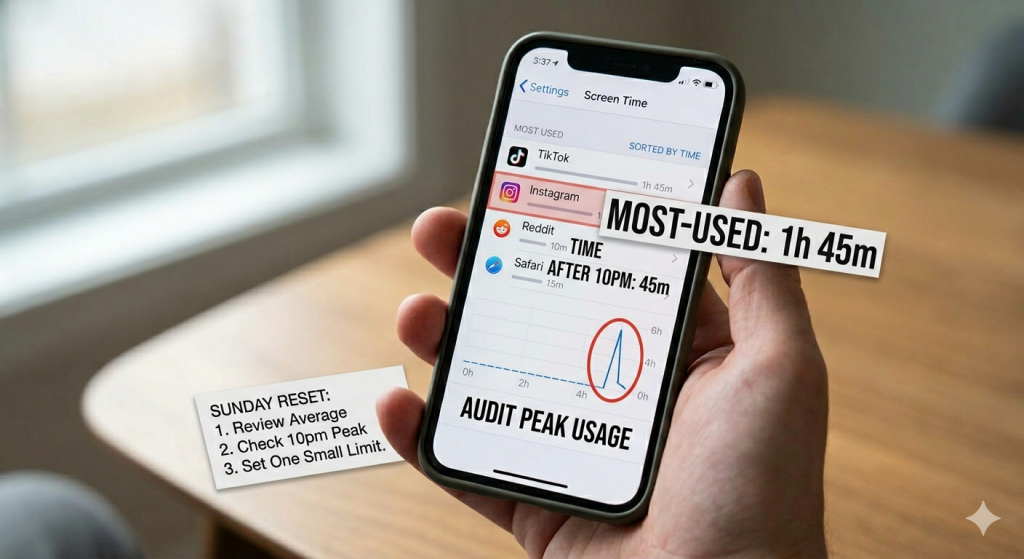
Pickups are one of the most interesting parts of Screen Time. They show how often you pick up your iPhone during the day.
Pickups reveal impulse use. They show those tiny moments when you grab your phone without a clear reason. Maybe you were waiting for coffee. Maybe a task felt boring. Maybe your brain simply wanted a snack-sized distraction.
Turn Data Into Better Boundaries
Screen Time data is not there to make you feel guilty. It is there to give you clues. Once you see the clues, you can build better boundaries. Start small:
- If pickups are high, move distracting apps away from your Home Screen.
- If one app dominates your evening, set a limit before bedtime.
- If notifications keep pulling you back, turn off the noisy ones.
Instead of a conclusion…
When you learn how to check screen time on iPhone beyond basics, you stop guessing. You see what pulls your attention, when it happens, and where to add friction.
Your phone can still be useful. It just does not need to be the boss of your thumbs.
Other Useful Info
How do I see Screen Time usage on iPhone?
Go to Settings > Screen Time, then tap See All App & Website Activity. You’ll see your daily or weekly usage, most-used apps, pickups, notifications, and when your phone gets the most attention.
How do I see my own Screen Time on my iPhone?
Open Settings > Screen Time on your iPhone. If Screen Time is turned on, you’ll see your daily average. Tap See All App & Website Activity to view your own app usage, pickups, notifications, and weekly trends.
How do I see full Screen Time history on my iPhone?
Go to Settings > Screen Time > See All App & Website Activity. You can switch between daily and weekly views, but iPhone only shows recent Screen Time history, not a full long-term archive.
How do I check my screen hours?
On iPhone, go to Settings > Screen Time to see your screen hours. Tap See All App & Website Activity for more details, including daily average, weekly use, most-used apps, pickups, and notifications.