- Digital Wellbeing offers gentle limits for distracting apps
- Focus Mode helps pause apps during key hours
- Home screen changes add helpful friction quickly
- One Goal supports focus and fewer random switches
If you are learning how to block apps on Android, you probably noticed one annoying truth fast. Basic timers sound helpful, but they often fail the moment your willpower drops. You tap “add more time,” promise it is just five minutes, and suddenly, you are back in the scroll hole.
The biggest mistake is making your system too easy to escape. If you can snooze it, delete it, or bypass it, you probably will. So let’s see how you can make things work.
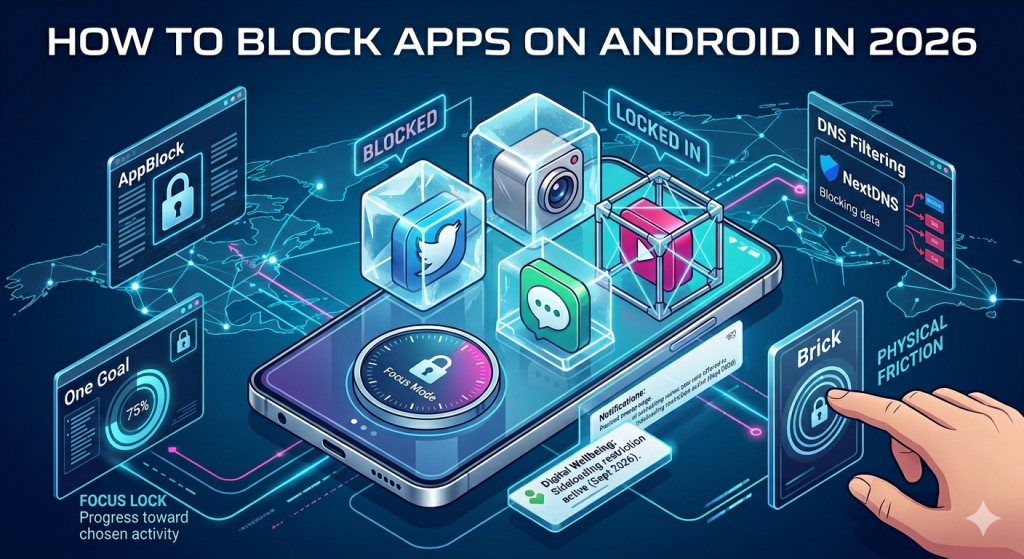
Use the Android Tools You Already Have
If you are searching for how to block apps on Android without rooting your phone, start simple. Android already gives you a few built-in tools that can help. They may not be perfect, but they are a good first step.
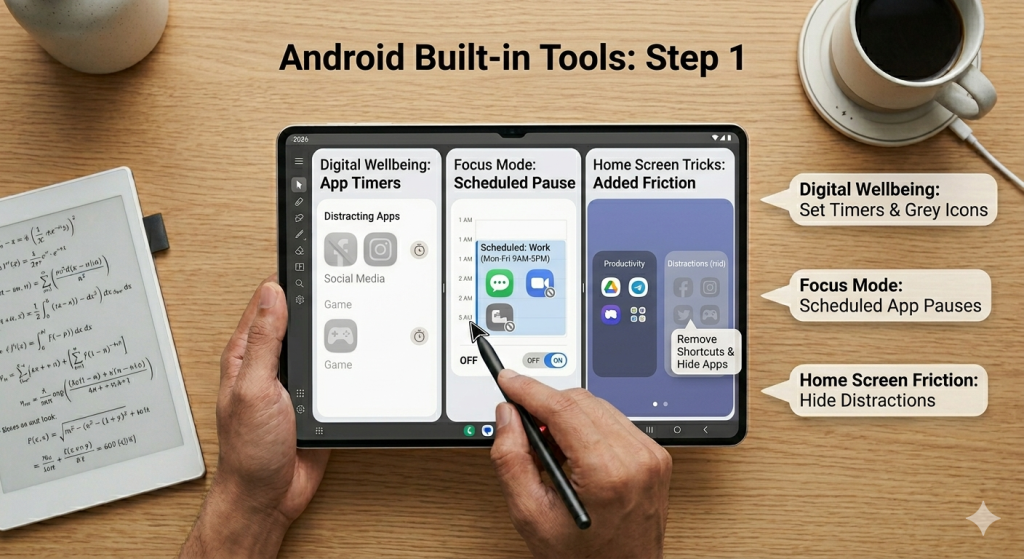
The most obvious one is Digital Wellbeing. You can set app timers for social media, games, or any app that steals your focus. When time runs out, the app icon turns grey and becomes harder to open.
That sounds basic, but it can help when you want a gentle reminder instead of a full lock.
You can also use Focus Mode. This feature lets you pause selected apps during work, study, or bedtime. It is handy because you can schedule it ahead of time.
That means less decision-making when your brain is tired and snacky for dopamine.
Another useful trick is changing your home screen:
- Move distracting apps off the first page.
- Hide them in folders.
- Remove shortcuts completely.
You are not blocking them fully, but you are slowing yourself down. That little pause matters more than people think.
App Blockers Worth Testing Without Root
Built-in tools are fine, but many people want something stronger. That is where third-party app blockers come in. The good news is you can use many of them without root access.
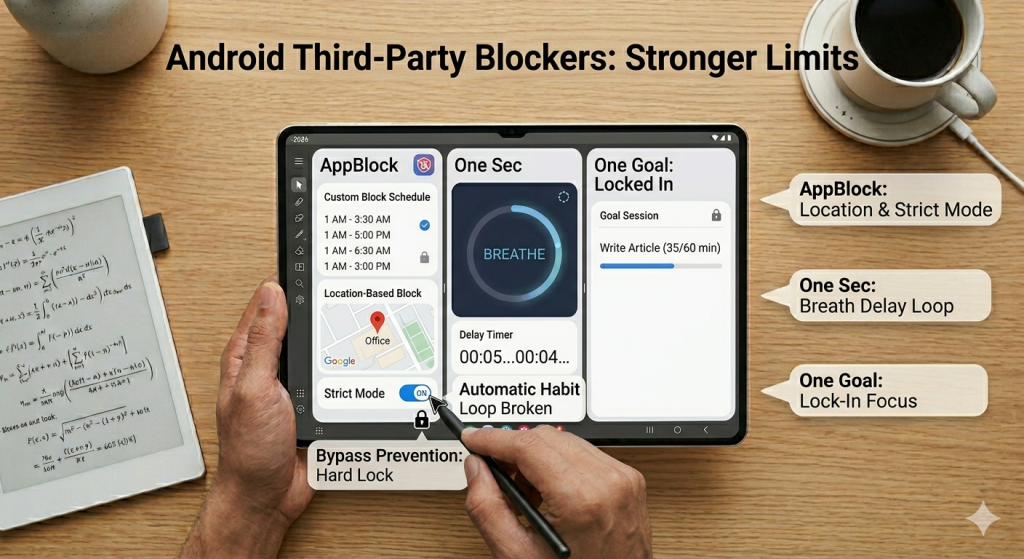
A popular option is AppBlock. It lets you block apps by schedule, location, or usage pattern. Some versions also offer stricter modes that make bypassing harder. That helps when your future self loves breaking deals made by your present self.
Another interesting option is One Sec. This app does not always block access completely. Instead, it adds a delay before opening distracting apps. You may need to breathe, wait, or confirm your choice. It sounds small, but it breaks the automatic habit loop.
Then there is One Goal: Locked In. If you like a cleaner, more focused setup, this one is worth testing. It helps you lock in and reduce random app switching. Instead of only shouting “stop,” it helps you stay with one intention. That can feel less punishing and more practical.
When choosing a blocker, look for simple settings and strong limits. You want something easy to set up, but annoying to bypass. That is the sweet spot. Too weak, and it becomes decoration. Too complicated, and you will stop using it.
DNS Tricks and the Limits of Non-Root Setups
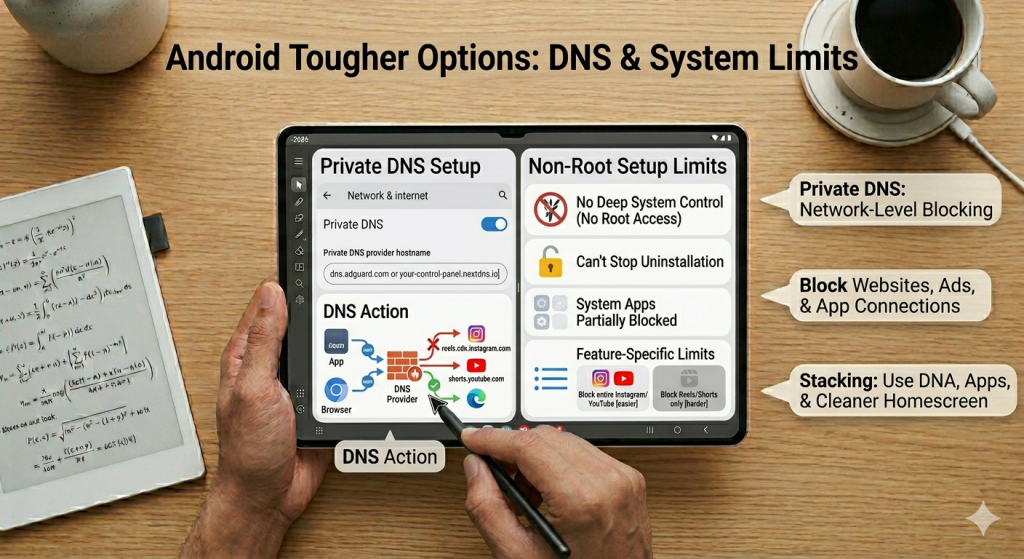
If app blockers still feel too easy to dodge, you can try a tougher option, which is DNS filtering. It sounds technical, but the idea is simple. Instead of blocking the app itself, you block the services it needs online.
Many Android phones let you change your Private DNS settings. With the right provider, you can block certain websites, ads, or app connections.
Still, non-root setups do have limits. This is important to know before you expect magic:
- Without root access, most blockers cannot control every part of your phone.
- They cannot always stop uninstalling.
- They may not block system apps fully.
- They usually cannot block every tiny feature inside an app.
For example, blocking YouTube completely is easier than blocking only Shorts. Blocking Instagram completely is easier than blocking only Reels.
If you want better results, stack your system: use app blockers, cleaner home screens, and DNS filters together. That is the real secret behind how to block apps on Android without root.
What Changed for Android Users in 2026
If you are figuring out how to block apps on Android in 2026, the game feels a bit different now. A few years ago, you could install almost any blocker and call it a day. Now, Android users are thinking more about privacy, bypassing, and which tools still work long-term.
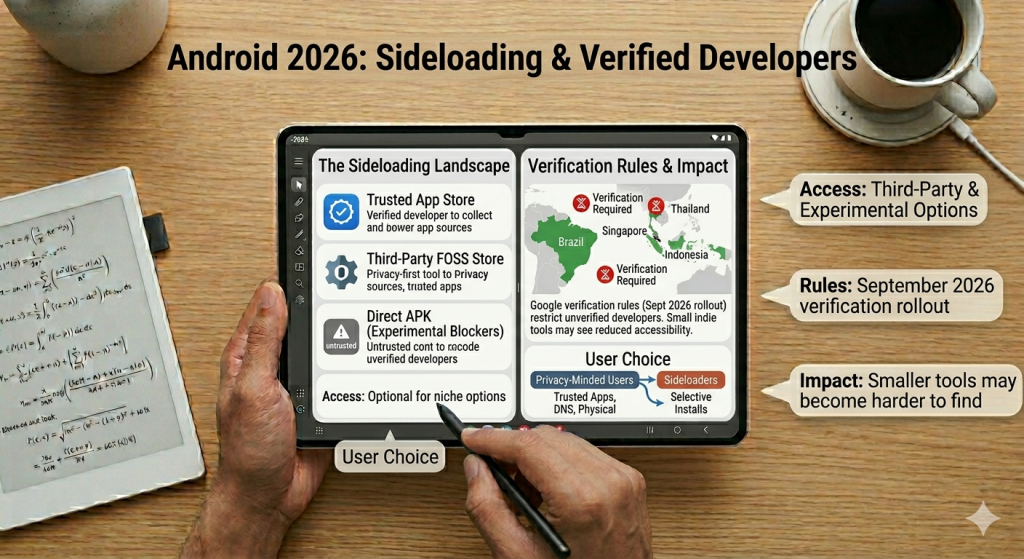
Sideloading still matters if you care about extra blocker options. It gives you access to apps that may not live in the Play Store. That can be useful if you want a niche blocker, a privacy-first tool, or a more experimental setup.
But sideloading is getting more complicated. Google’s Android developer verification rules mean that, starting in September 2026, apps on certified Android devices must be registered to verified developers. The first rollout is limited to Brazil, Singapore, Indonesia, and Thailand before expanding wider.
For you, that means your options may become cleaner but narrower. Some small indie tools may have a harder path. Some privacy-minded users may stick with trusted blocker apps, DNS filtering, or physical friction tools instead. Others may still sideload, but they will likely be more selective about what they install.
The Future of Bypass-Proof Blocking
The future of blocking is not just stronger apps. It is smarter friction. That means setups that slow you down before you make the bad choice.
You will likely see more blockers using layered systems:
- One layer may delay the app.
- Another may block internet access.
- Another may require a physical action to unlock.
The goal is to interrupt the autopilot. So the future of how to block apps on Android is probably not one perfect app. It is a stack of small barriers working together. Less hero mode. More smart design.
FAQs
How do I block a particular app in Android?
On Android, you can block a specific app with Digital Wellbeing, Focus Mode, or a third-party blocker. Choose the app, set a limit or schedule, and add friction so it is harder to bypass in weak moments.
How do I block unwanted apps on Android?
You can block unwanted apps on Android with Digital Wellbeing, Focus Mode, parental controls, or app blockers. For stronger results, hide shortcuts, set schedules, and use stricter tools that are harder to disable.
Is it possible to lock specific apps?
Yes, you can lock specific apps on Android with app blockers or focus tools. Apps like One Goal add friction and help you stay locked in, making distracting apps harder to open when you need to focus.
Does Android have a built-in app lock feature?
Not usually. Stock Android does not offer a universal built-in app lock. Some brands add one, and Android’s Private Space can hide and protect apps, but most users need a third-party app locker for full app-by-app locking.