- Hiding apps reduces visual temptation on your screen.
- Locking apps with Face ID slows automatic opening.
- App Limits help you use apps more intentionally.
- Downtime creates phone-free hours for better focus.
- Screen Time is the easiest built-in blocking tool.
- One Goal combines app blocking with focused action.
When you start looking into how to block apps on iPhone, it helps to know what “block” really means. In many cases, it means making the app harder to open, easier to avoid, or impossible to use at certain times.
That makes app blocking feel more realistic, helping you create more space between you and your worst scrolling habits.
What iPhone Users Are Doing Differently in 2026
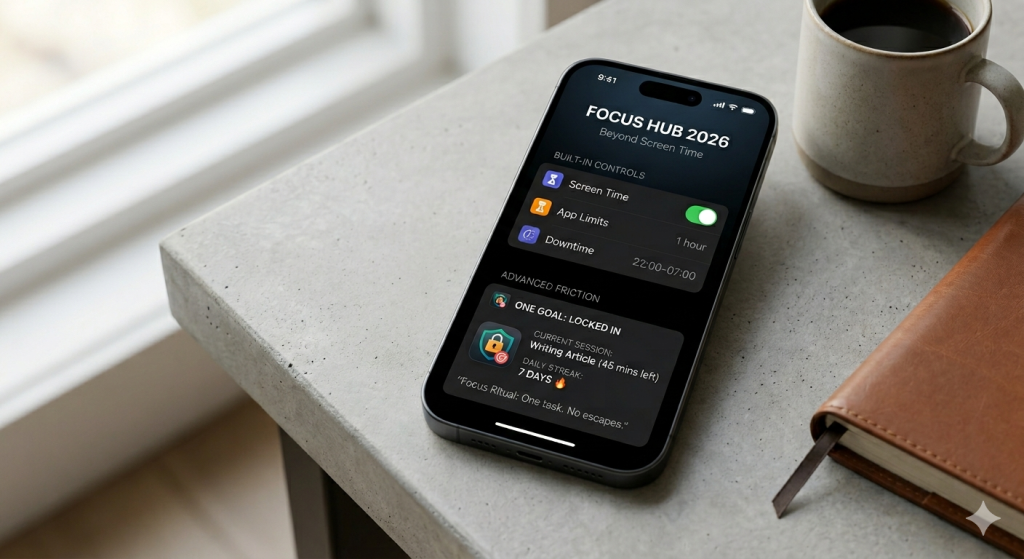
If you are searching how to block apps on iPhone, you have more options in 2026 than before. Now, people use a mix of built-in tools, smart limits, and extra friction.
Even with newer options, Screen Time is still the default choice for most iPhone users. It is already built into your phone, easy to access, and good enough for many everyday situations. You do not need to download anything. You just go into Settings and start setting rules.
It works especially well when you want a clean, basic setup. It is great for work hours, study sessions, family routines, or evening wind-down time.
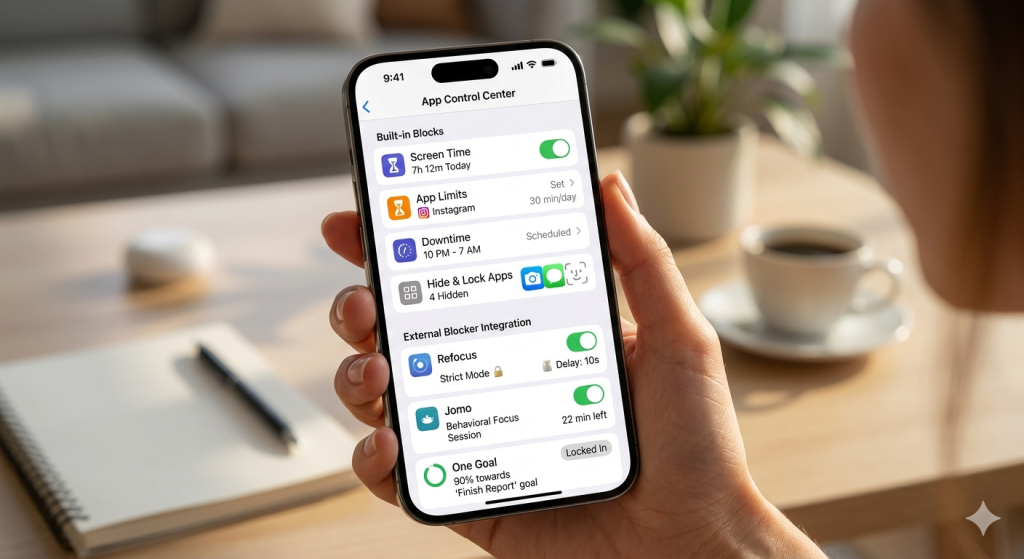
You can also use App Limits to reduce time on distracting apps and Downtime to block apps during certain hours. You can also adjust content restrictions if you want more control.
If your goal is learning how to block apps on iPhone without making life complicated, Screen Time is usually the smartest place to begin.
When Extra Blockers Make More Sense
Sometimes, built-in tools are not enough. Maybe you keep tapping “one more minute.” Maybe you want stricter focus sessions. Maybe you need your block settings to work across your phone and laptop.
That is when third-party blockers become worth it. Apps like Refocus, Jomo, or One Goal: Locked In can add stronger barriers.
Refocus is a good fit if you want blocking to feel firm and practical. Its Strict Mode can prevent easy unblocking. It even offers different ways to delay or stop you from changing your mind too quickly.
Jomo feels more flexible and behavior-focused. It can block apps, websites, and even whole categories like social media or shopping. Its messaging leans toward long-term screen time change, which makes it useful if you want more than a simple on-off blocker.
One Goal: Locked In takes a slightly different angle. It combines an app blocker with a focus timer, one objective per session, daily streaks, and adaptive motivation. So instead of only stopping distractions, it also pushes you toward one clear task. That makes it feel more like a focus system than just a digital gatekeeper.
The easiest way to think about it is this:
- Refocus is great for stricter blocking,
- Jomo is strong for flexible rules and lifestyle change,
- One Goal: Locked In is useful when you want blocking plus a clear focus ritual.
Hide, Lock, or Limit? Here Is the Difference
If you want to learn more about how to block apps on iPhone without deleting them, you have a few smart options:
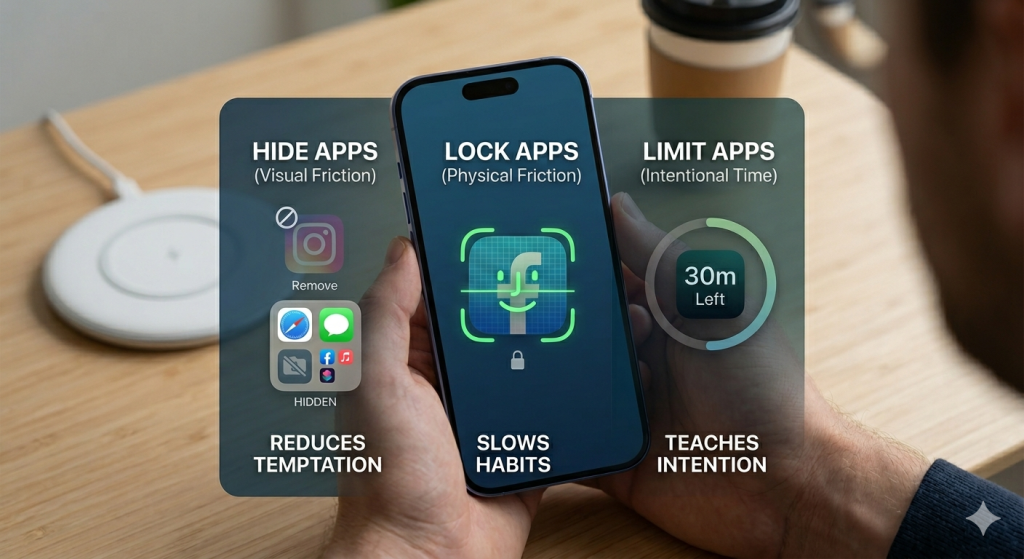
- Hiding an app means it is no longer sitting on your Home Screen. This is helpful when your fingers open apps before your brain even joins the conversation.
- Locking an app adds a barrier before you can use it. Instead of opening instantly, the app asks for Face ID. That tiny pause can be enough to stop an automatic habit.
- Limiting an app works differently. The app stays visible and available, but only for a set amount of time. Once you hit the limit, your iPhone tells you the fun is over.
Hiding reduces visual temptation. Locking adds friction. Limits teach you to use apps with more intention.
The Best Setup for Everyday Self-Control
The best setup is usually not the most extreme one. If you make your phone too strict, you may end up ignoring the whole system. A better approach is building layers:
- Start by hiding or locking the apps you open without thinking.
- Then use App Limits for the ones you still need sometimes.
- Add Downtime for the hours when you want more peace.
This gives you a flexible system instead of one giant rule. You can still use your phone, but now it works with your goals.
Conclusion
Blocking apps on your iPhone in 2026 does not have to mean going extreme. In most cases, the best solution is not deleting everything, but making distractions less automatic and good habits easier to follow. That is why learning how to block apps on iPhone is really about building a setup that works for your real life.
You might do perfectly fine with Screen Time, App Limits, and Downtime. Or you may need stronger tools like One Goal: Locked In to make those boundaries stick. Either way, the goal stays the same: less mindless tapping, more intentional phone use, and a little more peace in your day.
FAQs
Can you block a specific app on an iPhone?
Yes. You can block or restrict a specific app on iPhone using Screen Time, App Limits, or the Hide and Require Face ID option. The app may be hidden, locked, or limited, depending on the method you choose.
How do I block a particular app?
On iPhone, you can block a particular app by using Screen Time, App Limits, or Hide and Require Face ID. Go to Settings, open Screen Time, choose the app, and set a limit or restriction that matches your goal.
How to block apps on iPhone permanently?
You cannot permanently block every app on iPhone in one universal way, but you can make access long-term harder with Screen Time, Downtime, App Limits, and Hide and Require Face ID. For stricter control, use the One Goal app.
How to temporarily block an app from being used on iPhone?
Use Screen Time or Downtime to temporarily block an app on iPhone. Go to Settings > Screen Time, then set an App Limit or schedule Downtime. This makes the app unavailable or restricted only during the times you choose.