
- uBlock Origin Lite suits newer Chrome rules
- BlockSite works well for scheduled productivity blocking
- One Goal: Locked in adds purpose, not just restriction
- DNS filtering works beyond the Chrome browser
- Veil uses goal-based logic for smarter blocking
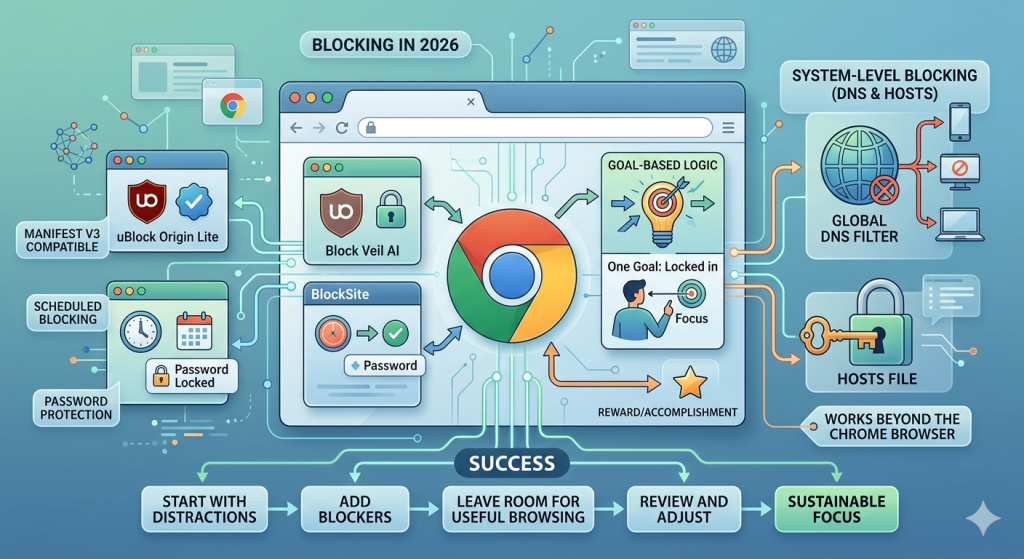
If you are trying to learn how to block a website on Chrome, you are not imagining the struggle. It really does feel harder now. A few years ago, you could install almost any blocker and forget about it. In 2026, that simple setup often falls apart faster than your Monday motivation.
A big reason is Chrome’s shift to Manifest V3. That update changed how browser extensions work behind the scenes. Some older blockers lost features, became less reliable, or stopped working the way users expected. So if you tried a tool years ago and loved it, there is a good chance it feels weaker now.
Blocking websites in Chrome today is more about choosing the right level of friction for your real habits. If you want something that actually sticks, you need a setup that matches your weak moments, too.
The Chrome Extensions Still Worth Using
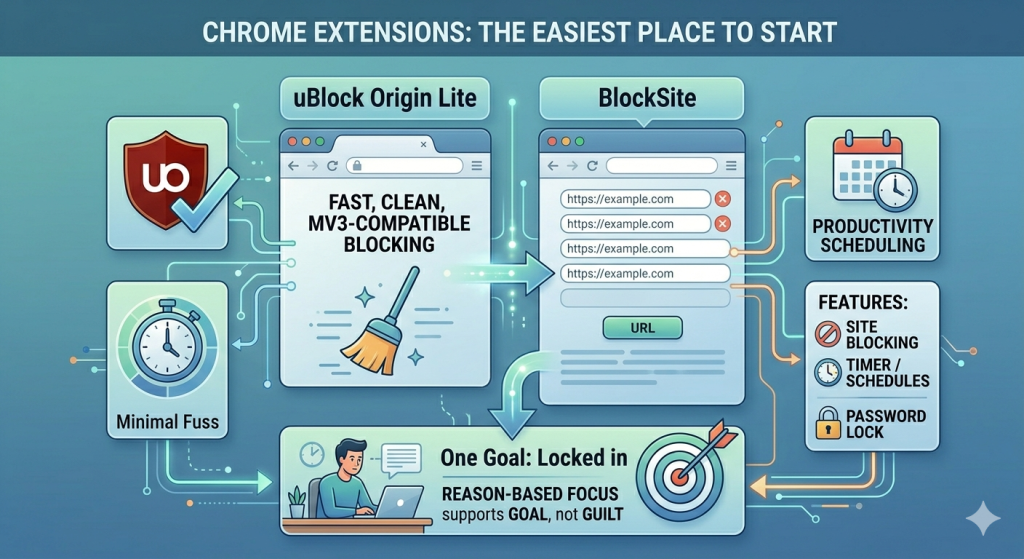
If you are searching for how to block a website on Chrome without overcomplicating everything, extensions are still the easiest place to start:
- uBlock Origin Lite: It was built for Chrome’s newer extension rules, which makes it more compatible in 2026. It is simple, cleaner than many alternatives, and often feels less invasive. If you want a fast fix without too much fuss, it is a smart first step.
- BlockSite: remains popular for productivity. It is more direct and user-friendly, which helps if you do not want technical headaches. You can block specific sites, create schedules, and make your browser a little less tempting. It is especially useful when your distractions are predictable, like social media or news loops.
The real trick is choosing an extension based on your habits. Chrome extensions work, but only when they match your level of honesty.
If you want more than a plain website blocker, One Goal: Locked in is a strong option. Instead of just saying “no,” it pushes you toward a clear reason to stay focused. That matters more than people think. A blocker works better when it supports a goal, not just a guilty feeling.
AI Blockers and a More Realistic Focus System
In 2026, blockers are getting smarter. Tools like Veil are part of that shift. Instead of making you block every site manually, they can use goal-based logic to decide what counts as distracting. That gives the whole process a more modern feel and makes your setup less generic.
This trend matters because focus is rarely one-size-fits-all. What distracts you may not distract someone else. An AI-style blocker can work around your goals, your work style, and your usual attention traps. That feels more helpful than a basic list of banned websites.

How to Make Blocking Actually Stick
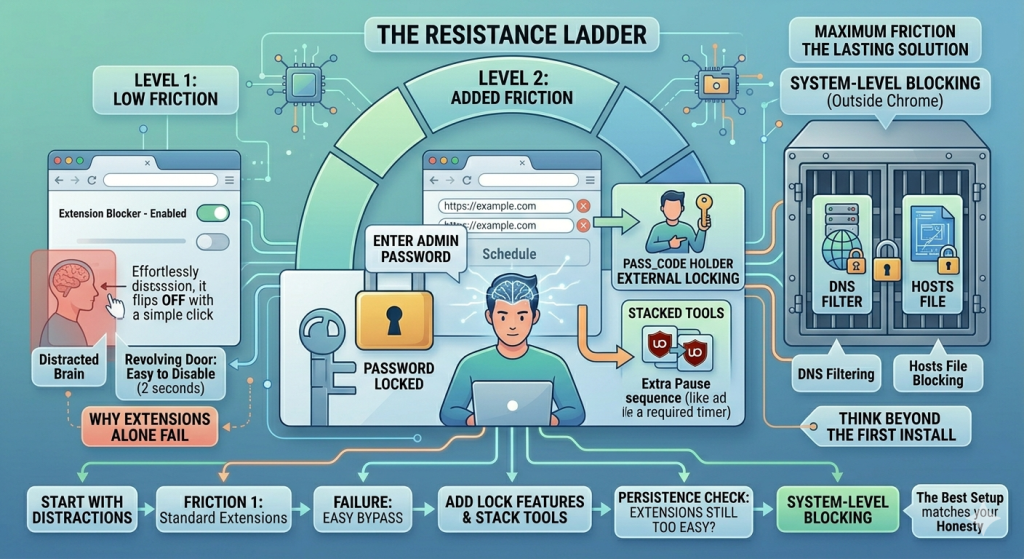
This is where most people fail, and honestly, it is not because they are lazy. If you can disable it in two seconds, your distracted brain will treat it like a revolving door. Here are some tips to help you stay consistent:
- Start by turning on every lock feature available. Tools like BlockSite work much better when you add password protection. Even better, let someone else hold that password.
- You can also stack tools. For example, use one extension to block the website and another to slow you down before opening distracting pages. That extra pause matters.
- Still, sometimes extensions are not enough. If you keep removing them, it may be time to switch levels. That is when DNS filtering or hosts file blocking starts making sense. These methods work outside the browser, which makes them harder to bypass.
So if you keep wondering how to block a website on Chrome in a way that actually lasts, think beyond the first install. The best setup is not the fanciest one.
Conclusion
If you want a system that lasts, keep it simple and realistic.
- Start with your worst distractions.
- Add blockers during the hours you actually need focus.
- Leave room for useful browsing.
- Review what keeps failing, then adjust.
Remember: The best answer to how to block a website on Chrome is not the strictest one. It is the one you will still use next week.
FAQs
How can I block a site on Google Chrome?
You can block a site on Google Chrome by using a website blocker extension, changing your DNS settings, or editing your hosts file. For most people, a Chrome extension is the easiest and quickest option.
How do I permanently block a specific website?
To permanently block a specific website, use a stronger method than a browser extension. DNS filtering or editing your hosts file works better because the block happens at system level, making it much harder to remove or bypass.
How do I permanently block a website on Chrome mobile?
On Chrome mobile, permanent blocking usually works best outside Chrome itself. On Android, use DNS filtering or Family Link for managed devices. On iPhone, use Screen Time web limits. These are harder to bypass than browser-only tools.
How do I block all 18+ sites on Chrome?
You can’t guarantee every 18+ site is blocked in Chrome alone. The strongest setup is Family Link’s “Try to block explicit sites” for supervised accounts, plus SafeSearch. Google notes these filters help, but they are not perfect.